Your phone films 4K. Your laptop can barely scrub it. And the AI tools that would save you hours of editing want a graphics card that costs more than a complete bike.
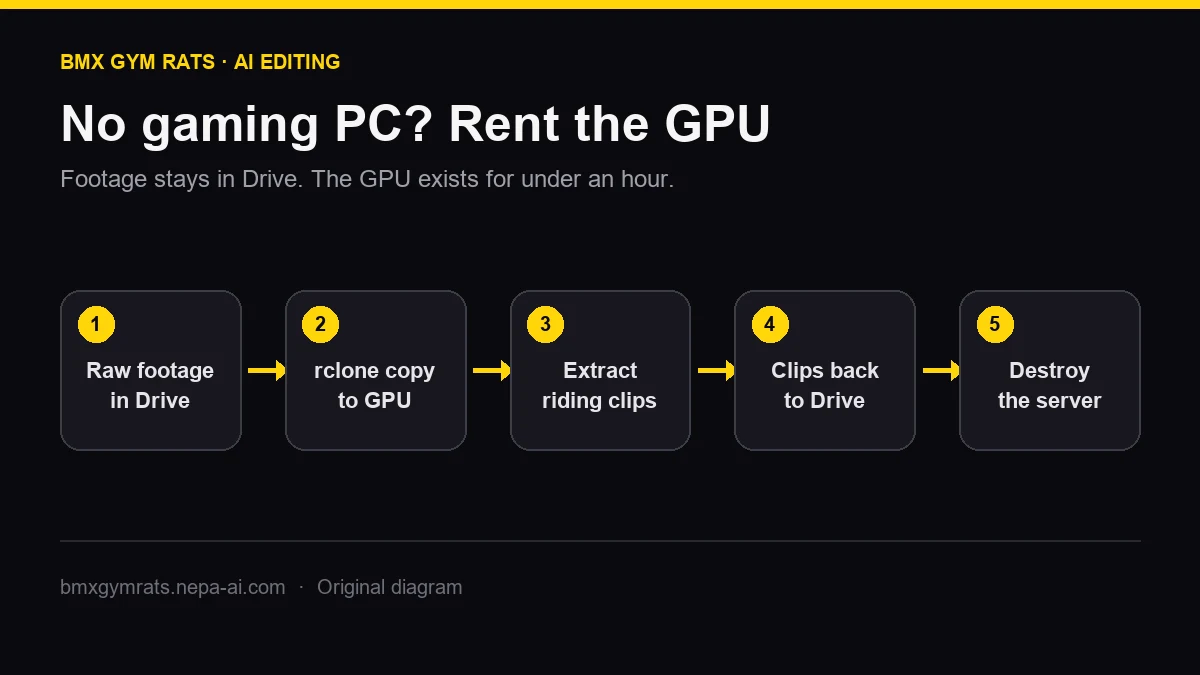
There's a middle path. Keep your footage in cloud storage you already use, like Google Drive, and rent a GPU only for the minutes you actually need it. This guide shows the full setup, what it costs, and the mistakes that turn a $1 job into a $40 bill.
Who this is for
- You film BMX on a phone or action camera and edit on a laptop without a strong GPU.
- You want to run AI clip extraction, such as our BMX Clip Extractor, on long sessions.
- You'll spend a little money per session instead of a lot on hardware.
If you already have a gaming PC with an NVIDIA card, start with the local Ollama guide instead.
The four-part setup
- Storage: Google Drive (or Dropbox, OneDrive, or anything rclone supports). Your raw sessions live here permanently.
- Transfer: rclone, a free command-line tool that copies files between cloud storage and a server.
- Compute: a rented GPU server. It exists only while the job runs.
- Output: back to Drive. Clips land in a folder you can open from your laptop or phone.
The GPU server should be disposable. If it disappears mid-job, nothing important is lost, because originals stay in Drive and results get copied out before you shut it down.
Choosing a GPU provider
The extractor needs an NVIDIA GPU with CUDA, so AMD-only instances won't work for it. Three providers fit the job:
DigitalOcean GPU Droplets. This is the most beginner-friendly of the three. As of October 2026, DigitalOcean lists on-demand single-GPU Droplets including:
| GPU | VRAM | On-demand price |
|---|---|---|
| NVIDIA RTX 4000 Ada | 20 GB | $0.76/GPU/hour |
| NVIDIA RTX 6000 Ada | 48 GB | $1.57/GPU/hour |
| NVIDIA L40S | 48 GB | $1.57/GPU/hour |
Billing is per second with a 5-minute minimum. Prices change, so check the GPU Droplet pricing page before you start. Create a DigitalOcean account here (affiliate link).
RunPod and Vast.ai are GPU-focused clouds with more card options and sometimes lower prices. Vast.ai is a marketplace, so reliability varies by host. Try RunPod or compare Vast.ai listings (referral links).
For a first run, a 20 GB card like the RTX 4000 Ada is a reasonable place to start with the 3B model. Use a 48 GB card when you want the 7B model with plenty of headroom.
The cost math (do this before you click Create)
Total cost = (setup + download + processing + upload) × hourly price.
Here's a hypothetical example. It's not a benchmark: say one 30-minute 4K session takes 10 minutes to set up, 10 minutes to copy from Drive, 20 minutes to scan, and 5 minutes to copy clips back. That's 45 minutes. On a $0.76/hour GPU, the job costs about $0.57. Measure your own first run and you'll know your real number.
The setup time is the part people forget. Script it once (see below) and it shrinks every time.
Step-by-step
1. Organize Drive
Make two folders: BMX/raw/2026-10-17-spot-name/ and BMX/clips/. One session per folder keeps transfers small.
2. Create the GPU server
Pick an NVIDIA GPU, an Ubuntu image, and add your SSH key. Don't use password login. Connect with:
ssh root@YOUR_SERVER_IP
3. Install the tools
sudo apt update && sudo apt install -y ffmpeg python3-venv
curl https://rclone.org/install.sh | sudo bash
nvidia-smi   # confirms the GPU is visible
Then install the Clip Extractor with its included setup-linux.sh.
4. Connect rclone to Google Drive
Two gotchas from rclone's current documentation:
- Make your own Google client ID. rclone's shared Google Drive client ID is being retired during 2026 and stops working after that. The rclone Drive docs walk through creating one in the Google API Console. It takes about 10 minutes, once.
- The server has no browser. Run
rclone configon the server, answer N to "use web browser," and it'll give you anrclone authorizecommand to run on your laptop. Paste the result back into the server.
Use the narrowest access you can. If the server only needs to read raw footage and write clips, set it up in a dedicated folder rather than giving it your whole Drive.
5. Pull, process, push
rclone copy "gdrive:BMX/raw/2026-10-17-spot" ~/work/raw --progress
venv/bin/python workspace/bmx_riding_extractor.py ~/work/raw/C1120.MP4 \
  --output-dir ~/work/clips --model qwen25-3b
rclone copy ~/work/clips "gdrive:BMX/clips/2026-10-17-spot" --progress
Check the clips actually appear in Drive before moving on.
6. Destroy the server
This is the step that matters most. On DigitalOcean, a powered-off GPU Droplet is still billed, because the disk, CPU, RAM, and IP stay reserved. You stop paying only when you destroy it. Other providers have similar rules for stopped instances and attached storage. Set a billing alert in your account so a forgotten server can't run all week.
Google Drive limits to know
- Drive allows about 750 GB of uploads per day per account, an undocumented limit that rclone's docs describe.
- Lots of small files transfer slowly, at roughly 2 files per second. Big video files move much faster, so this rarely matters for footage.
- Upload speed from your house to Drive is often the real bottleneck. Let a session upload overnight.
Privacy
Your footage passes through a server you rent. That's fine for your own riding, but get permission before uploading other people's footage, and don't leave copies on the server, because destroying it handles that. Never paste API keys or Drive tokens into public scripts.
The bottom line
You don't need a $2,000 GPU to use AI on your BMX footage. Footage in Drive, rclone, a GPU rented for under an hour, and the BMX Clip Extractor together turn a two-hour session into a folder of clips while you're out riding.
Want to understand the AI part first? Read How to automate BMX video editing with AI.


